Voices Of The Void Save Game – PC

Select your platform and your letter

Voices Of The Void Save Game

Voices Of The Void Save Game: free file for Voices Of The Void on PC, to copy into the game's save folder. Updated June 19, 2025 · 3,178 downloads.

PC
Voices Of The Void cover
Advertisement
REQUIRED CONDITIONS
This box must be checked to enable download.
5 seconds before download...
File: Voices.Of.The.Void.Cln.Base.III.0.8.2c.0011.Data.sav.zip
523.24 KB SHA-1: 28a0d97f…23c17feb
Information
  • Author: TSR
  • Downloads: 3,178
  • Updated:
  • Size: 523.24 KB
  • SHA-1: 28a0d97f4487a0539b3d3e135e1f4ef823c17feb

Cheat Codes

absolutely clean base


A short guide to what saves and Data.sav are and how to use them all:

The folder with saves is located at the following path: AppData > Local > VotV > Saved > SaveGames
The "AppData" folder is hidden, and to open it, you need to open the "View" tab in Explorer, then click "Options", and in the "View" category at the very bottom, select "Show hidden files, folders, and drives"
A more detailed path: Disk (C:) > Users > (Username) > AppData > Local > VotV > Saved > SaveGames

(Please note that I am writing all miniature guides that do not relate to VotV from the Windows 10 operating system)

Your Data.sav and all saves with worlds are already in the "SaveGames" folder. I recommend creating a file on your desktop at this step and copying all the files from SaveGames there so that you don't lose them

You should unzip the .sav files from my archive into the SaveGames folder. If you want, you can change the save mode, for this you only need to change the first letter before the underscore: "b_Name" (s - plot, i - endless, a - calm, b - sandbox)
If you don't have the sandbox open, but you really need it - in the same folder, replace your Data.sav with the one in the archive (don't forget to make a backup copy). The Data stores all the information about statistics and achievements, and the sandbox opens just after receiving the corresponding achievement

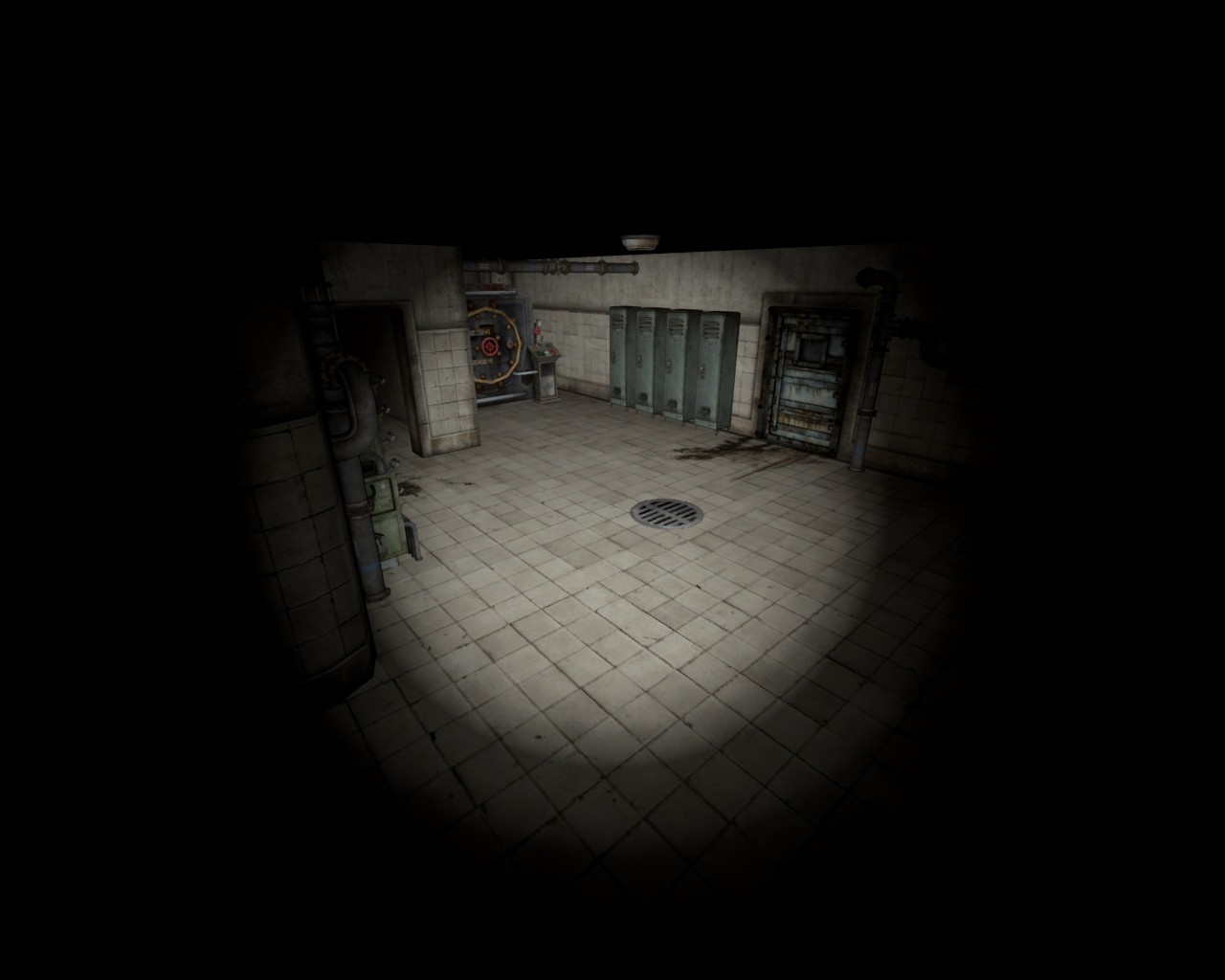
Archive Images

95569714.jpg
Click on an image to enlarge it

Information Files (.nfo)

Name of the file: Trainers.nfo


█▓▓▓▓▓▓▓▓▓▓▓▓▓▓▓▓▓▓▓▓▓▓▓▓▓▓▓▓▓▓▓▓▓▓▓▓▓▓▓▓▓▓▓▓▓▓▓▓▓▓▓▓▓▓▓▓▓▓▓▓▓▓▓▓▓▓▓▓▓▓▓▓▓▓▓█ █▓▒▒▒▓█████▓█████▓█████▓█▓█▓▓▓█▓█████▓█████▓█████▓▓▓▓████▓█▓█████▓█▓▓▓█▓▒▒▒▓█ █▓▒ ▓▓▓█▓▓▓█▓▓▓█▓█▓▓▓█▓█▓██▓▓█▓█▓▓▓▓▓█▓▓▓█▓█▓▓▓▓▓▓▓▓█▓▓▓▓█▓▓▓█▓▓▓▓█▓█▓▓ ▒▓█ █▓ ▓▓▓█▓▓▓█████▓█████▓█▓█▓█▓█▓████▓▓█████▓█████▓██▓█▓▓▓▓█▓▓▓█▓▓▓▓▓█▓▓▓ ▓█ █▓▒ ▓▓▓█▓▓▓█▓▓█▓▓█▓▓▓█▓█▓█▓▓██▓█▓▓▓▓▓█▓▓█▓▓▓▓▓▓█▓▓▓▓█▓▓▓▓█▓▓▓█▓▓▓▓▓█▓▓▓ ▒▓█ █▓▒▒▒▓▓▓█▓▓▓█▓▓▓█▓█▓▓▓█▓█▓█▓▓▓█▓█████▓█▓▓▓█▓█████▓▓▓▓████▓█▓▓▓█▓▓▓▓▓█▓▓▓▒▒▒▓█ █▓▓▓▓▓▓▓▓▓▓▓▓▓▓▓▓▓▓▓▓▓▓▓▓▓▓▓▓▓▓▓▓▓▓▓▓▓▓▓▓▓▓▓▓▓▓▓▓▓▓▓▓▓▓▓▓▓▓▓▓▓▓▓▓▓▓▓▓▓▓▓▓▓▓▓█ █▓▓▓▓░░░ Trainers City ░░░▓▓▓▓▓█ █▓▒▒▒ - The Bible Trainers - ▒▒▒▓█ █ ■■■■■■■■■■ ■■■■■■■■■■ █ █ █ █ This trainer doesn't work with your game? █ █ Read the FAQ or write to the author! █ █ https://www.trainerscity.com/en/help (In English) █ █ https://www.trainerscity.com/fr/help (In French) █ █ █ █ ■■■■■■■■■■ ■■■■■■■■■■ █ █ █ █ Try the forums of Trainers City in French and......

...You will find the rest of this information in: Trainers.nfo,
if you download this file: Voices.Of.The.Void.Cln.Base.III.0.8.2c.0011.Data.sav.zip
Trainers City

How to install the Voices Of The Void Save Game save game

This Voices Of The Void Save Game save file is a pre-advanced game progress file that you copy into the game's save folder. Back up your existing save file first — so you can restore it if needed. Then locate the game's save directory (usually under Documents/My Games/ or %APPDATA% on Windows) and replace the existing file with the one provided in the archive. Restart the game and load the save from the save selection menu.

FAQ

Yes, always. Copy your existing save file to a safe location before replacing it — if the downloaded save doesn't suit you, you can restore yours in seconds.

The location varies by game, but the most common paths on Windows are: Documents\My Games\[GameName]\, %APPDATA%\[GameName]\, or %LOCALAPPDATA%\[GameName]\. For Steam games, saves may also be stored in Steam\userdata\[SteamID]\[AppID]\remote\.

Make sure you copied the file to the correct folder and that the file name exactly matches the format the game expects (no double extension, e.g. .sav.sav). Some games also require the slot number to match an existing save slot.

Save files are usually compatible across versions of the same game, unless a major update changed the save format. If the game refuses to load the file, check that your game version matches the one noted in the description.
Still not working? Visit our help page for further assistance.
Comments
Become a Patron!
Comments only in English or French or comments will be removed!


Become a Patron!